
Using the Chrome Extension: Point & Click Setup
You've inserted the script and logged in. Open your site, click the iClarus icon in the browser — and let's go.
Step 1: Insert code and click Start
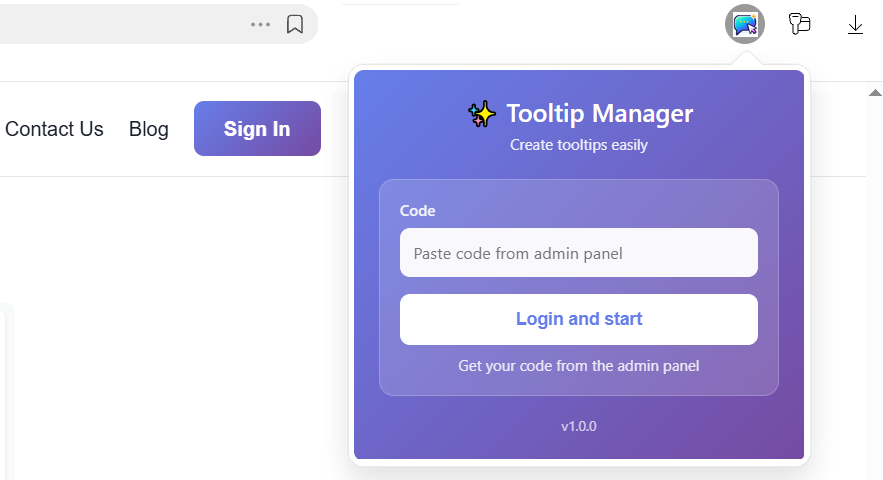
Open your site in Chrome. Click the iClarus extension icon. Paste the code from Chrome Plugin Authorization (in your Dashboard) into the extension and click Start.
Step 2: Choose your first element
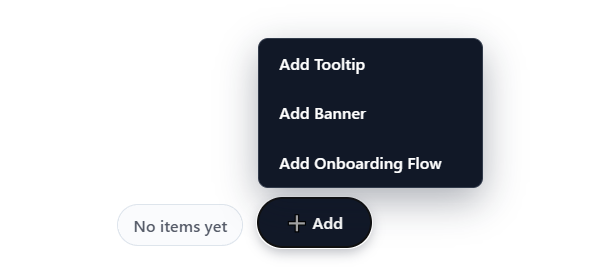
In the bottom sidebar you'll see three types: Tooltip, Onboarding Flow, Announcements. Click the one you want to create first — we'll walk through each.
Tooltips
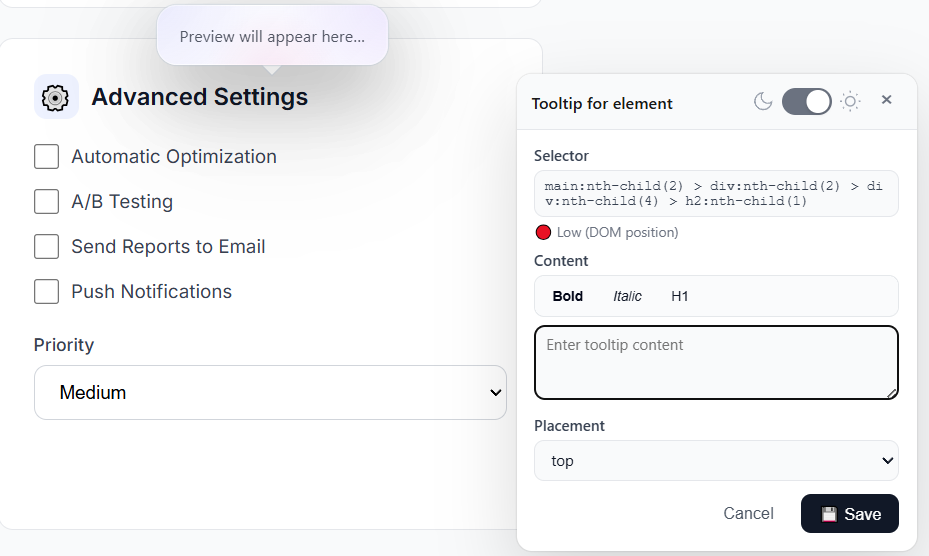
Contextual hints that appear on hover. One element = one tooltip.
How to create: Click Add Tooltip → click any element on the page (button, icon, link). A panel opens. Write Title and Body, choose position (top/bottom/left/right), optionally add a CTA button or paste a Youtube video URL. Click Save. The tooltip is live.
Use for: Explaining features, shortcuts, icons, form fields.
Onboarding Flow
Multi-step tours that guide users through your product.
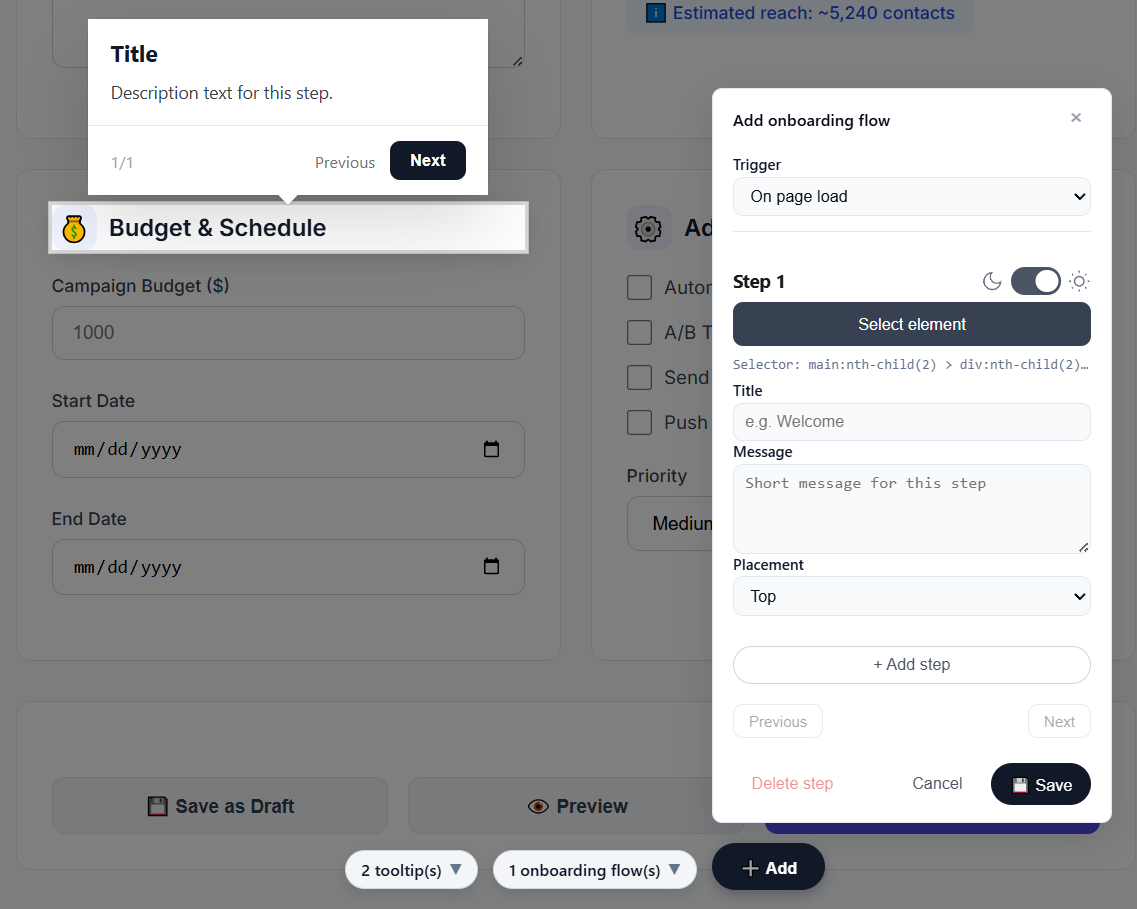
How to create: Click Add Onboarding Flow. Select the target element on the page → add the first step content. Set the trigger.
Add more steps to walk your users through your product.
Use for: First-time user tours, feature discovery, checklists.
Announcements (Banners)
Bars or modals at the top of the screen.
How to create: Click Add banner → write title and message. Will only appear once to each user.
Use for: Promos, updates, notifications.

The Add/Edit Panel — What's Common
All three elements share the same editor panel:
- Theme: Toggle Dark / Light in the top-right. Affects tooltips, flows, and banners.
- Selector: Shown at the bottom — the CSS selector for the target element. You can edit it manually if the visual picker misses nested elements.
- Preview: iClarus will automatically show you how it looks on the page before publishing.
Editing What You've Created
Open the extension on any page where your elements are active. The sidebar lists all tooltips, flows, and announcements. Click any item to open the editor. Change text, position, trigger and click Save. Changes go live immediately; no redeploy.
To delete: open the element → click Delete in the panel footer.